An alarm that tells you why it won’t arm: an open window or door stops it
A script in Home Assistant checks all the door and window sensors before arming. If something is open or has lost connection, the alarm stays off and you get a message saying what is stopping it.
- Level
- Beginner
- Active time
- 30–45 minutes
- Home Assistant required
- Yes
You press “arm” and leave, and in the evening you find out the bedroom window was open. Here is a script that checks all the doors and windows before arming and tells you what is stopping it.
What you will get
A button “Arm if everything is closed”. If all the sensors are closed, the alarm arms. If any is open or doesn’t respond, the alarm stays off and you get a message with the names of the problem doors and windows.
The project complements the alarm from the alarm project in Home Assistant. It also works with any other alarm_control_panel.
What we need
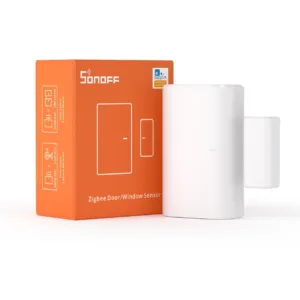
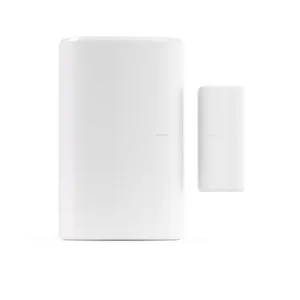
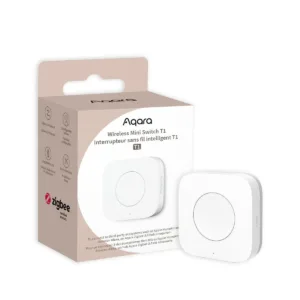
- Door sensor Sonoff SNZB-04PR1: one for each door or window you want to check. How many depends on your home.
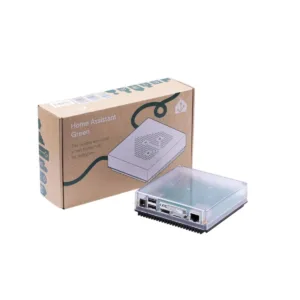
- Home Assistant, an alarm panel (
alarm_control_panel) and a phone with the app.
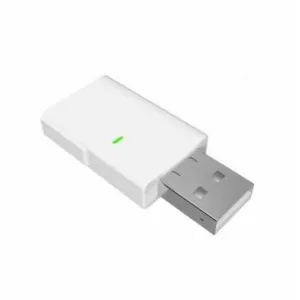
You need a Zigbee hub or Home Assistant with a Zigbee adapter.
- Setup time: about 30–45 minutes.
- Skills: you edit a script in YAML and add a card to the dashboard.
- Installation: the sensors are stuck on, with no connection to mains voltage.
How it works
The script makes a list of the sensors whose state is not off (closed). That includes on (open) and unavailable or unknown: a sensor with no connection doesn’t prove that the door is closed, so it also stops arming.
If the list is empty, the script calls alarm_control_panel.alarm_arm_away. Otherwise it sends a notification with the names from the list. The name is the name of the device, so name the sensors clearly: “Front door”, “Bedroom window”.
Steps
- Add and name the sensors. Pair each sensor through ZHA or Zigbee2MQTT. Give it the name of the place where it is stuck. Write down the entity IDs of the
binary_sensorfor the doors and windows. - Check the notifications. In Developer tools → Actions try
notify.mobile_app_…for your phone with a test message. - Create the script. Settings → Automations & scenes → Scripts → Create script → three dots → Edit in YAML. Paste the example. All the entity IDs are examples: replace them with your own.
alias: "Arm if everything is closed"
mode: single
variables:
  not_closed: >
    {{ expand('binary_sensor.front_door_contact',
              'binary_sensor.bedroom_window_contact',
              'binary_sensor.kitchen_window_contact')
       | rejectattr('state', 'eq', 'off')
       | map(attribute='name') | list }}
sequence:
  - if:
      - condition: template
        value_template: "{{ not_closed | count == 0 }}"
    then:
      - action: alarm_control_panel.alarm_arm_away
        target:
          entity_id: alarm_control_panel.home_alarm
        data:
          code: "1234"
    else:
      - action: notify.mobile_app_telefon
        data:
          title: "The alarm is not armed"
          message: "Open or no connection: {{ not_closed | join(', ') }}"
code is needed only if the panel has an arming code. The script is not a master key to the alarm: replace the code with your own and don’t keep it where guests can see it.
- Put a button on the dashboard. Add a Button card for the script and use it instead of arming the panel directly.
Checking the result
- Everything closed. The script arms the alarm. The panel goes into
arming. - An open window. Open one window and start the script: the alarm stays off, and the notification contains the name of the window.
- Two open. Both names are in the message.
- A sensor with no connection. Take the battery out of one sensor: the script counts it as a problem.
If it doesn’t work
- It always says “open”. Check in Developer tools → States: the state is
offwhen closed. If it is something else, for exampleclosed, changerejectattr('state','eq','off'). - The names are not clear. Rename the devices in Settings → Devices & services.
- It arms despite an open door. You armed directly from the panel, not from the button. The script is not involved.
- An error with the code. The panel requires a code: add
codeor use the panel’s setting.
Limitations and turning it off
- The script checks only the sensors you list. A door without a sensor is not watched.
- Arming directly from the panel bypasses the check. Hide it from the dashboard or explain to the household to use the button.
- An empty list
expand()means nothing is checked: add at least one sensor. - If Home Assistant is not running, there is neither a check nor an alarm.
- Turning off: delete the button and the script or use the panel directly.
Sources and verification status
The material follows the Home Assistant documentation, read on 22.11.2026. The topic is from Simeon’s list of ideas.
- Home Assistant: Manual alarm control panel, 22.11.2026
- Home Assistant: scripts and actions, 22.11.2026
- Home Assistant: templates (
expand,selectattr), 22.11.2026 - Home Assistant: Zigbee Home Automation, 22.11.2026
- Real Home Automations catalog: Sonoff SNZB-04PR1, 22.11.2026
Need a hand?
We can set up and install everything in this project. In some regions we install it ourselves — ask us.
Contact us