Smart lock and video doorbell: who’s at the door, opening from your phone and self-locking
A smart lock with automatic locking, a video doorbell and Home Assistant: the doorbell's picture in Home Assistant, unlocking from your phone and the questions you need to answer before buying.
- Level
- Intermediate
- Active time
- 120–180 minutes
- Home Assistant required
- Yes
Someone rings at the door, and you are on the sofa, in the shower or not at home at all. You want to see who it is, open from your phone and be sure the door locks by itself. This project describes how the pair of a smart lock and a video doorbell fits into Home Assistant.
What you will get
- A lock that locks itself after unlocking.
- Unlocking from your phone with confirmation.
- Live video from the doorbell in Home Assistant.
- Video and conversation through the doorbell’s app.
The lock works over Matter, and the doorbell’s picture comes into Home Assistant through Scrypted.
What we need
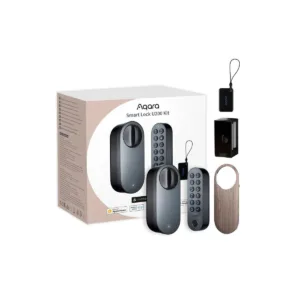
- Aqara U200 Kit smart lock: upgrades your existing lock, without drilling. It works over Matter through Thread, with a fingerprint, a code, NFC and a key; it has an automatic locking function.
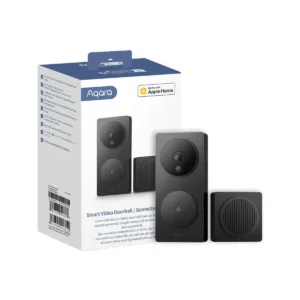
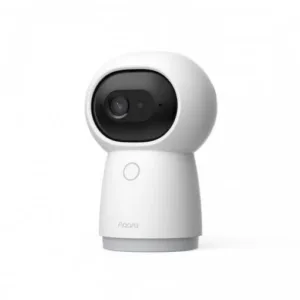
- Aqara Doorbell G410 Select video doorbell: 2K video, with a built-in Zigbee hub, Matter controller and Thread border router.
- Home Assistant, Wi-Fi and a phone with the Home Assistant app.
The lock works over Thread, so you need a Thread border router, for example Aqara Hub M100 or another border router you already have. The doorbell uses Wi-Fi.
- Setup time: 2–3 hours, as long as it takes to install the lock and the doorbell and connect them.
- Skills: you pair a Matter device and add a camera stream.
- Installation: the lock is fitted onto the cylinder, without drilling (see the compatibility with your cylinder in the description).
How it works
The lock is added to Home Assistant over Matter and provides a lock entity. It has the states locked and unlocked and the actions lock.lock and lock.unlock. Automatic locking is a function of the lock itself, so it works even when Home Assistant is down. In Home Assistant you configure and monitor it.
Over Matter the G410 gives Home Assistant only diagnostics and no “ring” event. The picture comes through Scrypted as a plain RTSP camera.
Simeon also locks the door from Home Assistant: an automation locks it a few minutes after the front door closes, and a toggle pauses it.
Steps
- Install the lock and turn on self-locking. In the lock’s app, set automatic locking with a delay that suits you. Check that the door is closed before it locks and that the cylinder turns freely.
- Add the lock to Home Assistant. Settings → Devices & services → Add integration → Matter. Scan the QR code following the lock’s instructions. A
lock.front_doorappears (example name). - Install the doorbell and add it in the manufacturer’s app.
- Show the doorbell as a camera. Add the doorbell’s RTSP stream in Scrypted; Home Assistant shows it as a plain camera.
- Unlocking from your phone. Add a “Lock” card to the dashboard. The dashboard is accessible only by signing in to Home Assistant. We don’t build an automation that unlocks by location: a GPS error would open the door.
- A reminder for a forgotten door. Optionally: an automation that sends a notification in the evening if the lock is
unlocked. Our project Forgot to lock up? shows how, with a door sensor.
Checking the result
- Locking. Unlock with a code, open and close the door: the lock locks after the set time, and
lock.front_doorbecomeslocked. - Unlocking from your phone. Press Unlock on the dashboard. The state changes and the lock unlocks.
- Doorbell. Open the doorbell camera in Home Assistant: you see the live picture from the door.
- Without Wi-Fi. Turn off the router’s Wi-Fi and check what keeps working: the lock with a code or fingerprint should work without a network.
If it doesn’t work
- The lock is
unavailable. The Thread border router isn’t reachable or is far away. Check it. - It doesn’t lock by itself. Self-locking is off or the door isn’t fully closed.
- No picture from the doorbell. The RTSP address in Scrypted is wrong. Check it.
- The doorbell doesn’t connect. The Wi-Fi signal at the door is weak.
Limitations and switching off
- Self-locking on a badly aligned door can leave the lock in an attempted-lock state: check the door and the lock after installation.
- The doorbell’s video depends on Wi-Fi and the internet if you watch it from outside the home.
- We don’t show recording and don’t promise storage: you choose the cloud and microSD settings.
- Switching off: turn off self-locking in the lock and remove the automation; the lock keeps being used with a key.
Sources and verification status
The material follows the documentation of the manufacturers and of Home Assistant, read on 22.11.2026. The topic is from Simeon’s list of ideas.
- Home Assistant: Lock, 22.11.2026
- Home Assistant: Matter, 22.11.2026
- Home Assistant: automations, triggers, 22.11.2026
- Real Home Automations catalogue: Aqara U200 Kit and Aqara Doorbell G410 Select (product descriptions), 22.11.2026
Need a hand?
We can set up and install everything in this project. In some regions we install it ourselves — ask us.
Contact us