Blinds that know if it’s a working day: open at 08:00 on weekdays and 10:00 on days off
One automation in Home Assistant opens the blind at 08:00 on a working day and at 10:00 on Saturday, Sunday and holidays. For an existing blind with a motor controlled by a module, not for curtains.
- Level
- Intermediate
- Active time
- 45–90 minutes
- Home Assistant required
- Yes
You want the blinds to go up at 08:00 on a working day and at 10:00 on Saturday, Sunday and holidays, without touching anything. Home Assistant has a Workday integration that tells you whether today is a working day, and we tie it to the blind.
What you will get
One automation that opens the blind at 08:00 when today is a working day, and at 10:00 when it isn’t. The project opens the blinds and nothing more. Closing, the sun and presence are separate ideas.
What you need
The project is for an existing motorised roller shutter or blindthat a motor with built-in limit switches raises and lowers through a relay or a switch. It is not for curtains with a small motor and not for blinds with a battery motor. If the blind is still controlled only by a wall switch, the module is installed in place of the switch or behind it.
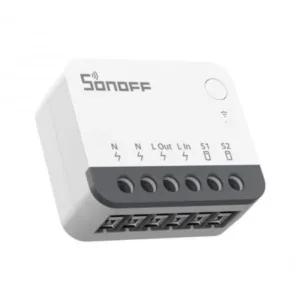
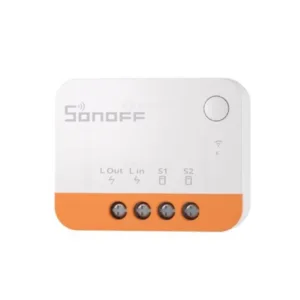
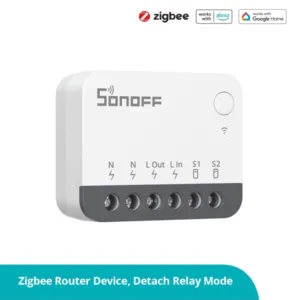
- Blind module: Sonoff MINI-ZBRBS, Zigbee, for a motor under 1 A.
- You already have: Home Assistant and a motorised blind with a 4- or 5-wire AC motor with a built-in limit stop.
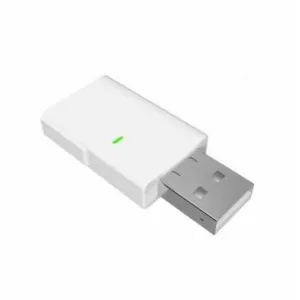
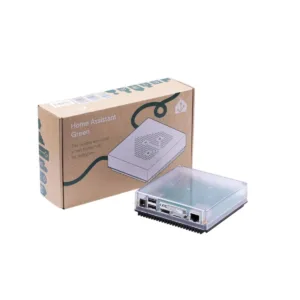
You need a Zigbee hub or Home Assistant with a Zigbee adapter.
The hub or adapter is not included in the product. We have no ready-made kit for this project.
- Setup time: 45–90 minutes when the installation is already done.
- Skills: you add a device to Home Assistant and paste YAML.
- Installation: the module connects to mains voltage and to a motor.
Check the motor
The Sonoff MINI-ZBRBS is for four- or five-wire motors with a built-in limiter.
The motor’s travel limits are set before the module is connected and are not changed by it.
How it works
Workday adds a sensor to Home Assistant binary_sensor. It is on on a working day and off on Saturday, Sunday and an official holiday for the chosen country. The sensor updates at midnight. The automation has two time triggers, 08:00 and 10:00, and starts the opening only when the time matches the type of day.
Steps
- Install and calibrate the blind. Then calibrate the travel so that the position in percent works. Hold the module’s button for 10 seconds until the LED starts to “breathe”: the module runs the motor through the whole travel by itself. The blind must move in the right direction. If not, change the direction according to the instructions.
- Add the module to Home Assistant. Hold the module’s button for 5 seconds: the LED blinks slowly while it is in pairing mode. Add it through the Zigbee integration (ZHA) or Zigbee2MQTT. In Settings → Devices & services an entity of type
covershould appear, for examplecover.living_room_shutter. The “Open” and “Close” buttons on its card should move the blind. - Add the Workday integration. Settings → Devices & services → Add Integration → Workday. Choose Bulgaria as the country. In “Days to include” leave Monday to Friday. In “Days to exclude” leave Sat, Sun and Holidays. You get
binary_sensor, for examplebinary_sensor.workday_sensor. Check in Developer tools → States that today’s value is correct. - Create the automation. Settings → Automations & scenes → Create automation → Create new automation → three dots → Edit in YAML. Paste the following example and replace the two entity IDs with your own.
alias: "Blinds: opening by working day"
description: "08:00 on a working day, 10:00 on a day off or a holiday"
mode: single
triggers:
  - trigger: time
    at: "08:00:00"
    id: workday
  - trigger: time
    at: "10:00:00"
    id: restday
conditions:
  - condition: or
    conditions:
      - condition: and
        conditions:
          - condition: trigger
            id: workday
          - condition: state
            entity_id: binary_sensor.workday_sensor
            state: "on"
      - condition: and
        conditions:
          - condition: trigger
            id: restday
          - condition: state
            entity_id: binary_sensor.workday_sensor
            state: "off"
actions:
  - action: cover.open_cover
    target:
      entity_id: cover.living_room_shutter
You paste it as one automation in the editor, not in the file automations.yaml. The two entity IDs are examples. After saving, the automation shows up in the list and is on.
Checking the result
- Manual run. Close the blind. In the automation choose Run actions. The blind should start going up.
- Working day. In Developer tools → States check that
binary_sensor.workday_sensorison. At 08:00 the blind opens, and at 10:00 nothing happens. - Saturday or Sunday. The sensor’s value is
off, at 08:00 nothing happens, and at 10:00 the blind opens. The trace of the run is in Settings → Automations → the automation → Traces. - Holiday. The action
workday.check_datein Developer tools → Actions checks whether a given date is a working day for your configuration. - Restart. After a Home Assistant restart, the automation stays on and the time triggers apply again.
If it doesn’t work
- The blind doesn’t move, and the automation has run. The entity ID isn’t that of
coveror the module is offline. Open the entity in Settings → Entities and try to run it manually. - The automation doesn’t start at any time. Check in Traces which trigger fired and which condition stopped it. Most often the sensor’s entity ID is wrong.
- The sensor shows the wrong day. Workday uses the holidays library and works offline. A missing holiday is added in “Add holidays” in the integration’s options.
- The blind moves backwards. The module’s two output wires are swapped with the power off (Sonoff), or the direction is reversed following the module’s instructions.
Limitations and switching off
- The holidays come from the holidays library. We don’t claim that transferred days off are included. Check two dates with
workday.check_date. - If Home Assistant is not running at 08:00 or 10:00, the opening isn’t done later on its own. The blind stays where it is.
- The automation doesn’t check whether there is a person or an object in the blind’s path. Rely on the protections of the motor itself. The manufacturer describes a maximum continuous movement in one direction of 2 minutes, so stop the movement before the end of travel if you control it manually.
- Normal control remains. The wall switch or the module’s buttons move the blind as before. To stop the automatic opening, turn off the automation in Settings → Automations or delete it. Turning off the module in Home Assistant doesn’t affect the wall switch.
Sources and verification status
The material follows the documentation of the manufacturers and of Home Assistant, read on 22.11.2026. The topic is from Simeon’s list of ideas.
- Home Assistant: Workday, 22.11.2026
- Home Assistant: Zigbee Home Automation, 22.11.2026
- ZHA quirk for SONOFF MINI-ZBRBS, 22.11.2026
- SONOFF: MINI-ZBRBS, 22.11.2026
- Zigbee2MQTT: SONOFF MINI-ZBRBS, 22.11.2026
Need a hand?
We can set up and install everything in this project. In some regions we install it ourselves — ask us.
Contact us