“Movie”, “Good night” and “Leaving” scenes: a practical everyday project
One wireless button with a single, double and long press triggers three scenes: movie, good night and leaving. We show how to build them in Home Assistant and how to run them from your phone too.
- Level
- Intermediate
- Active time
- 45–90 minutes
- Home Assistant required
- Yes
In the evening you want to watch a film without getting up three times. Before sleep you want everything off, and when you leave, you want to be sure nothing was left on. Three moments, three scenes and one button.
What you will get
Three scenes in Home Assistant: Movie, Good night and Leaving. One small wireless button on the wall or on the table launches them: a single press for “Movie”, a double press for “Good night”, a long press for “Leaving”. You launch the same scenes from your phone if the button isn’t at hand.
You build the scenes from devices you already have. We don’t add new lamps.
What you need
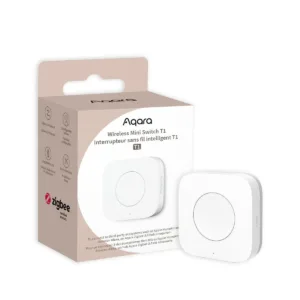
- Sonoff SNZB-01P: a wireless Zigbee button. You need 1 piece. The manufacturer describes it with a single, double and long press.
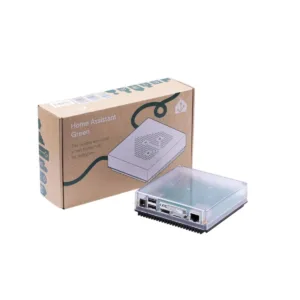
- You need a Zigbee hub or Home Assistant with a Zigbee adapter.
- The lamps and other devices you want to control. If you don’t have blinds or a TV in Home Assistant, the scene will be light only, and that is perfectly enough.
- Optionally, a sensor on the front door, for the check in “Leaving”.
How it works
The button sends an event: single, double or long. An automation listens for the event and launches the scene. A scene is a saved state of the lamps.
This way the button doesn’t know what the scenes do, and the scenes don’t know where the button is. If you replace the button, you change only one trigger.
Steps
- Pair the button in Home Assistant. You should see a device with entities for the action: with the ZHA Zigbee integration they appear as events, and with Zigbee2MQTT as
action. - Create three scenes in Settings → Automations & scenes → Scenes:
– Movie: ceiling light off, a strip or lamp at 10–20 %, and the blinds closed if you like; – Good night: all lamps off, except a dim light toward the bathroom; – Leaving: everything off.
- Create an automation with the button. An example with sample names; in your Home Assistant, replace the device and the scenes:
alias: Button – three scenes
triggers:
  - trigger: event
    event_type: zha_event
    event_data:
      device_ieee: "00:00:00:00:00:00:00:00"
      command: single
    id: single
  - trigger: event
    event_type: zha_event
    event_data:
      device_ieee: "00:00:00:00:00:00:00:00"
      command: double
    id: double
  - trigger: event
    event_type: zha_event
    event_data:
      device_ieee: "00:00:00:00:00:00:00:00"
      command: long
    id: long
actions:
  - choose:
      - conditions: "{{ trigger.id == 'single' }}"
        sequence:
          - action: scene.turn_on
            target: {entity_id: scene.kino}
      - conditions: "{{ trigger.id == 'double' }}"
        sequence:
          - action: scene.turn_on
            target: {entity_id: scene.leka_nosht}
      - conditions: "{{ trigger.id == 'long' }}"
        sequence:
          - action: scene.turn_on
            target: {entity_id: scene.izlizam}
mode: single
The device address and the command names depend on the integration. It is easier to use the visual editor and pick the button as a trigger from the device list; that way Home Assistant fills in the right values.
- Test each press separately. You should get the matching scene.
- Add the three scenes to the dashboard as buttons.
Checking the result
- Launch each scene from the dashboard, then from the button. The result should be the same.
- Press quickly twice. If the single press fires as well, increase the time between presses in the button’s settings or use a different gesture for “Movie”.
- Take the battery out of the button: the scenes from the dashboard still work, but not from the button.
If it doesn’t work
- Nothing happens on a press: the event isn’t reaching Home Assistant. Look in Developer tools → Events to see what arrives on a press.
- A wrong scene runs: the command names differ. Use the events from your own button.
- The scene doesn’t switch everything off: some lamp isn’t added to the scene. Open it and add the missing one.
- The “Leaving” scene switches off while the door is open: add a condition for the door sensor and a notification instead of switching off.
Limitations
The button works over Zigbee and depends on the Zigbee network. Three scenes on one button are hard to remember at first: stick a small note next to it. The “Leaving” scene doesn’t lock the door and doesn’t stop appliances that aren’t in Home Assistant. If someone stays at home, don’t launch “Leaving” automatically.
Sources and verification status
- Scenes in Home Assistant, checked on 22.11.2026.
- Automations in Home Assistant, checked on 22.11.2026.
- ZHA in Home Assistant, checked on 22.11.2026.
- The Sonoff SNZB-01P product page in the shop.
- Marto’s automations were read in read-only mode in his Home Assistant on 22.11.2026.
Event names depend on the integration and the version.
At home
Marto
In Marto's Home Assistant, the wireless switches and buttons by the beds and in the hallway trigger different things with a single, double and long press. A double press on one button turns the strip to full brightness, and holding it dims it to 10 %. Marto's buttons of this kind are other models, not the Sonoff SNZB-01P.
Need a hand?
We can set up and install everything in this project. In some regions we install it ourselves — ask us.
Contact us