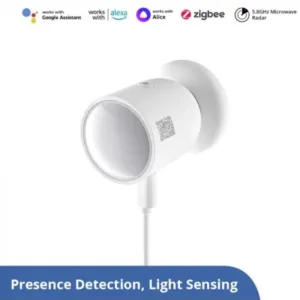
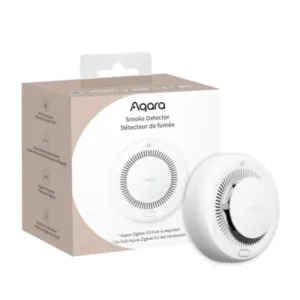
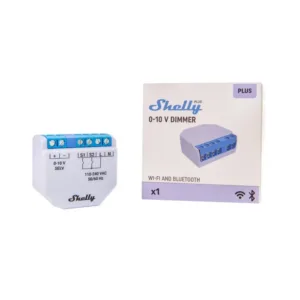
“Guests” mode: a babysitter, a cleaner or relatives at home, without the system switching to “away”
A “guests” switch in Home Assistant pauses the away automations while there are people at home without phones that the system tracks, and switches itself off after a set time.
- Level
- Beginner
- Active time
- 30–45 minutes
- Home Assistant required
- Yes
The babysitter, the cleaner or relatives are at home, while your phones are out. Home Assistant decides that “everyone has left”: it turns off the lamps, arms the alarm, lowers the heating. “Guests” mode tells the system that there are people at home whom we don’t track.
What you will get
One switch on the dashboard that does two things. The “away” automations don’t run while it is on. And if you forget it, it switches itself off after a chosen number of hours and sends you a notification.
What we need
- Home Assistant and your “I’ve left” automations. The project is logic and needs no new devices; we don’t offer a product for it.
- A phone with the Home Assistant app, for the notification.
- Setup time: 30–45 minutes.
- Skills: you create a helper switch and add a condition to automations.
How it works
A helper switch (input_boolean) is a remembered state “guests are at home”. It doesn’t physically switch anything on. To every automation that thinks “nobody is home” we add a condition “guests are not on”. A second automation switches it off after a set time, so that it doesn’t stay on by accident.
At Simeon’s the “guests” switch has one effect: it stops the automation that turns off the TVs when everyone leaves. The phones tell the system that people have left.
Steps
- Create the switch. Settings → Devices & services → Helpers → Create helper → Toggle. Name “Guest mode”; the entity ID becomes
input_boolean.guest_mode(an example). Put it on the dashboard. - Find the away automations. In Settings → Automations & scenes look for the ones that trigger on “everyone is out”, “alarm is armed” or “I’ve left”. Write them down.
- Add a condition to each. Edit in YAML and in
conditionsadd a block that skips the run when guests are on.
conditions:
  - condition: state
    entity_id: input_boolean.guest_mode
    state: "off"
This is only a fragment: you paste it into the existing automation, not as a new one. If the automation already has conditions, add the line to the list.
- Automatic switch-off. A second automation switches the switch off after 12 hours (an example) and notifies you:
alias: "Guest mode: automatic switch-off"
mode: single
triggers:
  - trigger: state
    entity_id: input_boolean.guest_mode
    to: "on"
    for: "12:00:00"
actions:
  - action: input_boolean.turn_off
    target:
      entity_id: input_boolean.guest_mode
  - action: notify.mobile_app_telefon
    data:
      message: "“Guests” mode was switched off after 12 hours."
notify.mobile_app_telefon is an example name of a notification service; find yours in Developer tools → Actions.
Checking the result
- Guests on. Leave with your phone: the lamps and the heating don’t change.
- Guests off. The same departure triggers the usual automations.
- Automatic switch-off. Temporarily change “12:00:00” to “00:00:30”, check and change it back.
- Restart. After a Home Assistant restart, check whether the switch has kept its state.
If it doesn’t work
- The automation still runs. The condition is in another automation that you haven’t changed. Search for them by entity.
- The switch turns off too early. The time in
foris shorter than needed. - The notification doesn’t arrive. Check the notification service.
Limitations and switching off
- The switch doesn’t know who is at home: you turn it on. If you forget, the away automations stay paused until the time runs out.
- It doesn’t change automations that you haven’t supplemented with the condition.
- Switching off: turn off the switch or remove the conditions.
Sources and verification status
The material follows the Home Assistant documentation, read on 22.11.2026. The topic is from Simeon’s list of ideas.
- Home Assistant: Input boolean, 22.11.2026
- Home Assistant: automations, conditions, 22.11.2026
- Home Assistant: automations, triggers, 22.11.2026
Need a hand?
We can set up and install everything in this project. In some regions we install it ourselves — ask us.
Contact us