The Home Assistant database is filling up: how to keep it from getting slow and huge
The Home Assistant Recorder records a history of every change and the database grows. We show how to see what takes up space, how to switch off the unneeded and how to purge safely.
- Level
- Intermediate
- Active time
- 30–60 minutes
- Home Assistant required
- Yes
Home Assistant records every change of every entity. With thousands of entities and power sensors that update every few seconds, the database grows for days. In the end the history loads slowly, the backups are huge and the disk fills up. Here is how to prevent it.
What you will learn
What the component Recorderdoes, how to see which entities fill the database and how to record only what you need for history and charts.
What you will need
- A working Home Assistant with access to Settings → System and a configuration editor.
- A fresh backup. You change the configuration and run a purge. The backup is a safety net.
- 30–60 minutes. The result shows after days, because the database does not shrink immediately.
How it works
The Recorder keeps the history in a database. By default this is a SQLite file. The history is purged automatically after a set number of days (purge_keep_days). The documentation states 10 days by default.
Separately, Home Assistant keeps long-term statistics (for the energy panel and charts) for entities of a suitable type. They are not purged by purge_keep_days, so switching an entity off early from the Recorder may also deprive it of statistics. Check before you switch it off.
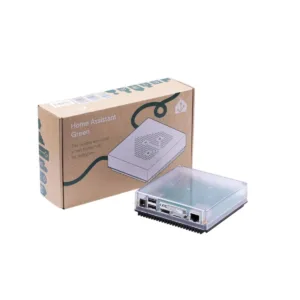
At Simeon’s the database is a 2.3 GB SQLite file with 90 days of history; voltage, current and power are kept for 10 days, and the long-term statistics are kept. His second installation, on a Home Assistant Green, has a 171 MB database with the default 10 days of history.
Steps
- Settings → System → Storage shows how much space is used. If there is no visible problem, do not touch anything.
- Find the noisy entities: these are the ones that change most often, for example powers reported every few seconds. Their history in the entity’s chart shows how dense the points are.
- Decide what you do not need in the history: for example fast-changing powers or diagnostic sensors.
- In
configuration.yamladd a blockrecorder. Example (the values are examples):
recorder:
  purge_keep_days: 7
  exclude:
    domains:
      - automation
      - update
    entity_globs:
      - sensor.*_linkquality
- sensor.*_rssi- Developer tools → YAML → Check configuration, then restart Home Assistant.
- To purge immediately: Developer tools → Actions →
recorder.purgeusingkeep_daysof your choice. Turning onrepackshrinks the file, but makes the database unavailable while it runs, so do it at a quiet hour.
Checking the result
- Watch the database size for a few days. After the restart the growth should be slower.
- Open the history of an entity you switched off. No new records appear.
- Check whether the charts you use (energy) still work.
If it does not work
- The database does not shrink →
repackhas not been run → run it at a quiet hour or usepurgeusingrepack. - Missing history for a needed entity → it ended up in
exclude→ remove the line and restart. - Home Assistant does not start after a change → an error in the YAML → restore the backup or fix the indentation.
Limitations
- A switched-off entity stays in Home Assistant and works in automations, it just does not keep history.
- Fewer days of history means less looking back in time in the charts.
- For a large installation an external database such as MariaDB is a separate topic. We do not recommend it as a start.
Sources and verification status
Checked against the documentation on 22.11.2026.
Need a hand?
We can set up and install everything in this project. In some regions we install it ourselves — ask us.
Contact us