Water heater on the night tariff and what electricity costs at home
You connect the water heater to a relay with power metering, follow the day and night tariff in Home Assistant, get a daily report of the cost in euros and a notification when the water is hot.
- Level
- Intermediate
- Active time
- 60–120 minutes
- Home Assistant required
- Yes
The night tariff is cheaper only if the water heater really heats at night. Switching it on by hand before bed gets forgotten, and a mechanical timer doesn’t know when the supplier changes the hours.
Here you connect the water heater to a relay with power metering, take the day and night tariff as a sensor in Home Assistant, and let the relay heat only on the night tariff. Finally you add a daily report of the cost in euros and a notification for when the water is hot.
How it works
Three parts work together. The relay supplies or cuts power to the water heater and measures its power. The tariff sensor says whether it is now day (day) or night (night). The automation switches the relay on at the start of the night and off when the day returns.
At night the relay is not stopped by the clock but by the power. When the water is hot, the water heater’s thermostat stops the heating element and the power drops below a set threshold. Then Home Assistant switches the relay off.
That is why the most reliable sign of “heated” is not the time of day but power that has dropped for a few minutes. It works the same when you switch the water heater on by hand.
The tariff hours are not the same for everyone
Don’t take someone else’s schedule as your own. ENERGO-PRO publishes for its customers a night tariff from 23:00 to 07:00 from April to October and from 22:00 to 06:00 from November to March. Other companies and your meter may be set differently, so ask your supplier and check the meter.
The sensor we use comes from the Bulgarian Electricity Regulated Pricing integration. It supports Electrohold, EVN and ENERGO-PRO and follows the official rules. If your meter doesn’t switch to summer time, the integration has the option Use Legacy Night Tariff Algorithm.
Before you entrust the water heater to the sensor, compare the moment it switches to night, with the moment your meter changes the rate.
1. Choose the relay and install it
To check that the relay suits your water heater, take its power from the label in watts and divide by 230 V. A water heater of about 2 kW draws about 9 A. Ours shows about 2.1 kW on the sensor while heating. The result has to be below the relay’s rating.
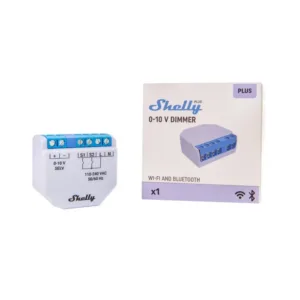
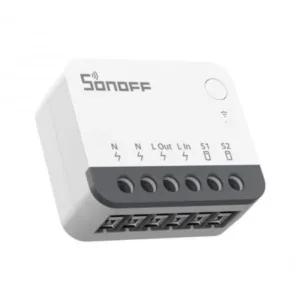
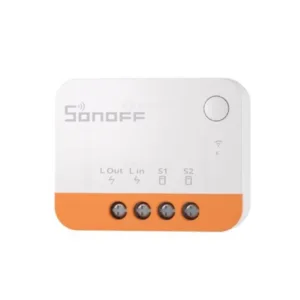
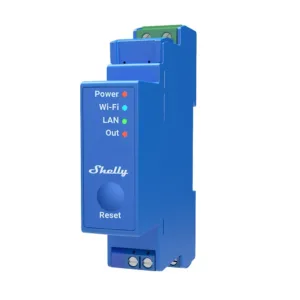
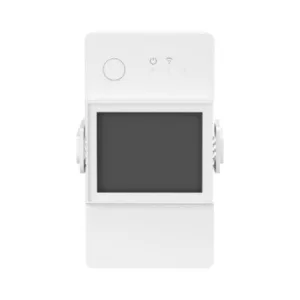
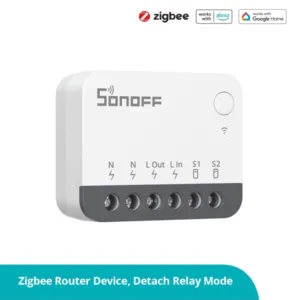
We use Ogemray Smart Relay 25A. The manufacturer describes it for a load of up to 25 A and 6000 W with power measurement, so a typical 2 to 3 kW water heater is well within its range.
The relay goes on the live wire between the panel and the water heater.
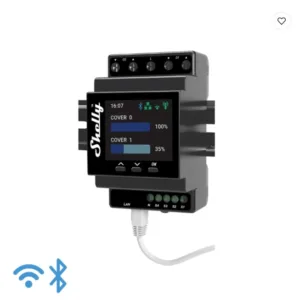
After installing, add the relay from Settings → Devices & services → Add integration → Shelly. You get a switch and Power and Energy sensors. Switch the water heater on and off from Home Assistant. Power should jump from close to 0 to its power and come back.
2. Measure what heating looks like
Open the history of the Power sensor (Settings → Devices & services → Entities → select the sensor → History) for a day when the water heater was heating. You are looking for two values: the power while heating and the power when the thermostat has stopped the heating element.
From them you pick thresholds. In our configuration the end of heating is a power below 150 W for 3 minutes, and the “water heater is idle” check is below 50 W. These numbers are for our water heater. Take yours from your own history.
The same history shows when the water heater is really heating: a stretch of high power is heating, and a drop to near zero is the thermostat resting. Put the Power sensor on a dashboard with a History graph card and you see at a glance how often it runs and how long it takes to heat.
3. Add the tariff sensor
The integration is not in the standard catalogue. You add avataar/bg_electricity_regulated_pricing as a custom repository in HACS, restart Home Assistant and add it from Settings → Devices & services → Add integration.
Enter a name, choose the supplier and leave the other options at their defaults. You get two sensors: ..._tariff with the states day and night and ..._price with a price in EUR/kWh. According to the integration’s description the prices are final, with VAT.
Ours has the device named Home electricity, so the sensors are sensor.home_electricity_tariff and sensor.home_electricity_price.
Open Developer tools → States and see what tariff shows right now. If it doesn’t match your meter, go back to the previous section and check the supplier.
4. The tariff automation
This section shows the method. The example is a simplified version of the tariff automation we had, without the extra heating at 20:00.
alias: Water heater on night tariff
mode: restart
triggers:
  - trigger: state
    entity_id: sensor.home_electricity_tariff
    to: night
    id: night_start
  - trigger: time
    at: "05:00:00"
    id: top_up
  - trigger: state
    entity_id: sensor.home_electricity_tariff
    to: day
    id: day_start
actions:
  - choose:
      - conditions:
          - condition: trigger
            id: day_start
        sequence:
          - action: switch.turn_off
            target:
              entity_id: switch.bathroom_main_water_heater
      - conditions:
          - condition: or
            conditions:
              - condition: trigger
                id: night_start
              - condition: and
                conditions:
                  - condition: trigger
                    id: top_up
                  - condition: state
                    entity_id: sensor.home_electricity_tariff
                    state: night
                  - condition: numeric_state
                    entity_id: sensor.bathroom_main_water_heater_power
                    below: 50
        sequence:
          - action: switch.turn_on
            target:
              entity_id: switch.bathroom_main_water_heater
          - wait_for_trigger:
              - trigger: numeric_state
                entity_id: sensor.bathroom_main_water_heater_power
                below: 150
                for:
                  minutes: 3
            timeout: "02:30:00"
            continue_on_timeout: true
          - action: switch.turn_off
            target:
              entity_id: switch.bathroom_main_water_heater
Paste it from Settings → Automations & scenes → Create automation → Create new automation → three dots → Edit in YAML. Replace the entities with your own. The 05:00 time is an example. The night ends at 06:00 or 07:00 depending on the season and the supplier.
night_start switches the relay on and waits for the power to fall below 150 W for 3 minutes. top_up tops up the heating toward the end of the night, if it is still night and the water heater is idle. day_start switches the relay off. The mode restart interrupts a pending run on a new start, so day_start also stops an unfinished night run.
The trigger numeric_state fires when the threshold is crossed. If the water heater is warm and the power stays below 150 W, there is no crossing and the relay stays on until the 2 hours 30 minutes timeout ends. The timeout is your ceiling for a relay left on needlessly.
5. A button for manual switch-on
The night schedule doesn’t help when you’ve run out of hot water in the evening. Ours has a wall button in the bathroom. One automation switches on the same switch on a single press. It is enabled and doesn’t depend on the tariff one.
alias: Bathroom button turns on water heater
triggers:
  - trigger: event
    event_type: shelly.click
    event_data:
      device_id: REPLACE_WITH_BUTTON_DEVICE_ID
      click_type: single
actions:
  - action: switch.turn_on
    target:
      entity_id: switch.bathroom_main_water_heater
It has no switch-off action. The water heater is stopped by its own thermostat, and the relay stays on until something else switches it off. If you copy the example, add switch-off by power, as in the previous step.
The easiest way to get device_id is to create the automation through the interface with a Device trigger.
Manual control stays whatever the automations do: the relay’s switch in Home Assistant, the button, and the water heater’s own switch or fuse on the panel. The thermostat is never bypassed. To go back to the usual control, switch the automation off from Settings → Automations.
6. What the electricity costs
For a bill you need power, price and accumulation over time. Add the relay’s energy sensor in Settings → Dashboards → Energy → Individual devices. That shows how many kWh go to the water heater. For euros you build a chain of helpers:
- A Template helper with the power in kW, multiplied by
sensor.home_electricity_price. The unit is EUR/h. - An Integral sensor helper on top of it, with the time unit hour. You get accumulated euros.
- A Utility meter helper with a Daily cycle on top of the accumulated euros. You get the cost for today.
That gives you the daily cost of the water heater only. For the whole home you need a measurement of the total power. We describe one in the next project.
The report at the end of the day is a second automation. Ours works like this: at 23:59 it sends a notification with the day’s cost, the kWh used and the change compared with the previous day. A simplified version:
alias: Daily energy and price report
triggers:
  - trigger: time
    at: "23:59:00"
actions:
  - variables:
      cost: "{{ states('sensor.home_cost_daily') | float(0) }}"
      kwh: "{{ states('sensor.home_energy_daily') | float(0) }}"
      cost_yesterday: "{{ state_attr('sensor.home_cost_daily', 'last_period') | float(0) }}"
      change: >-
        {{ ((cost - cost_yesterday) / cost_yesterday * 100) | round(0) | int if cost_yesterday > 0 else 0 }}
  - action: notify.mobile_app_telefon
    data:
      title: Electricity for the day
      message: "{{ cost | round(2) }} EUR, {{ kwh | round(1) }} kWh, {{ change }}% compared to yesterday"
Replace sensor.home_cost_daily and sensor.home_energy_daily with your daily sensors from the previous chain, and notify.mobile_app_telefon with your phone’s service (Developer tools → Actions → search for notify).
7. A notification when the water is hot
Besides the cost you want to know when the water is ready. The sign is the same as in the other automations: power that rises above a threshold and then drops for a few minutes.
At Marto’s, the bathroom water heater’s power sensor starts an automation when the power goes above 1000 W. It waits for the power to fall below 100 W for 3 minutes, checks that the water heater had been heating for a minimum time, and then sends a notification to two people’s phones. The logic is simple: if the water heater ran for a while and then stopped, the water is hot. Choose the minimum heating time from your own power history: short top-ups of a few minutes shouldn’t send a notification. If another automation switches the relay off, there is no notification, because the water hasn’t finished heating.
alias: Water heater - the water is hot
mode: single
triggers:
  - trigger: numeric_state
    entity_id: sensor.bathroom_main_water_heater_power
    above: 1000
actions:
  - variables:
      started: "{{ now() }}"
  - wait_for_trigger:
      - trigger: numeric_state
        entity_id: sensor.bathroom_main_water_heater_power
        below: 100
        for: "00:03:00"
    timeout: "06:00:00"
    continue_on_timeout: false
  - condition: template
    # example value: 40 minutes (2400 s); take yours from your own history
    value_template: "{{ (now() - started).total_seconds() >= 2400 }}"
  - action: notify.mobile_app_telefon
    data:
      message: The water is hot.
Paste it the same way as the tariff automation and replace the entities and the notify service with your own. Take the thresholds from your power history: 1000 W is the level above which heating surely runs, 100 W is below the thermostat-off level.
Check
- Normal case. After the first night with
nightopen Settings → Automations → the automation → Traces. The relay should have switched on when the tariff changed. Also check whetherwait_for_triggerexited by power and not by timeout. - Edge case. Look at the Power history. If the relay stayed on until the timeout, your threshold is too low or the water heater was already warm. Adjust the threshold using the history.
- Hot-water notification. Switch the water heater on by hand and watch the power. After heating stops and the power stays below 100 W for 3 minutes, the message arrives. A short top-up should not send one.
- Restart. Optionally restart Home Assistant while the relay is switched on by the automation. The run doesn’t continue after the restart. The relay stays on until the next tariff change to
day. The water heater’s thermostat still limits the temperature.
If it doesn’t work
- The relay doesn’t switch on at the start of the night. The tariff sensor is
unavailableorunknown, or it hasn’t gone throughnight. Look at it in Developer tools → States and in the integration’s settings. - The relay doesn’t switch off. The power doesn’t cross the threshold from above to below. Look at the Power history and compare with the threshold. The sensor may be
unavailableif the relay has lost Wi-Fi. - The relay switches off too early. The threshold is above the power the water heater draws at the end of heating. Increase the time of
foror lower the threshold. - The relay doesn’t appear in Home Assistant. Check that it is on the same network as Home Assistant and that it has been added in the Shelly integration.
- There is never a hot-water notification. The 1000 W or 100 W threshold doesn’t match the real power. Look at the Power chart and correct the values.
- The notification comes after every top-up. Add or raise the minimum heating time, as in the example.
- Power is 0 while the water is hot. The thermostat has switched the heating element off. That is normal; check that the relay itself is on.
- The amount doesn’t match the invoice. The price sensor covers the regulated market. A free-market contract, a contract with other components or another supplier gives a different bill.
Next project
When the water heater, the oven and a car charger run in the house at the same time, the problem is no longer the tariff but the fuse. See how we limit the load in steps: Tesla and water heater: bring the load down before the main fuse trips.
Sources
Works at Marto’s: the button in the bathroom (the automation is enabled), the daily report at 23:59 (last triggered on 18 October 2026) and the hot-water notification.
- ENERGO-PRO: prices and tariffs, hours of the day and night tariff
- avataar/bg_electricity_regulated_pricing: integration for the tariff and the price
- Shelly: Ogemray smart relay 25A, data and diagram
- Home Assistant: Shelly integration
- Home Assistant: triggers, including numeric_state
- Home Assistant: wait_for_trigger
- Home Assistant: automation modes
- Home Assistant: Energy and individual devices
- Home Assistant: Integral sensor
- Home Assistant: Utility meter
- HACS: adding a custom repository
At home
Marto
The water heater in the bathroom is behind an Ogemray 25A relay. We switch it on manually with a button when we need hot water, and that suits us. We don't use automatic heating on the night tariff: we had such an automation, but we turned it off because we don't need it. Every day at 23:59 we get a notification with the day's electricity cost in euros and the change compared with yesterday.
Need a hand?
We can set up and install everything in this project. In some regions we install it ourselves — ask us.
Contact us