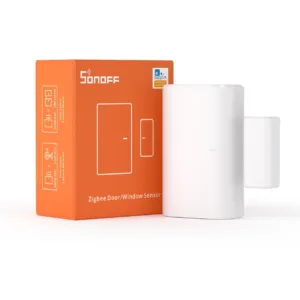
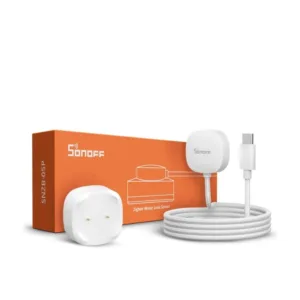
A switch exactly where you need it: wireless control without cables or drilling
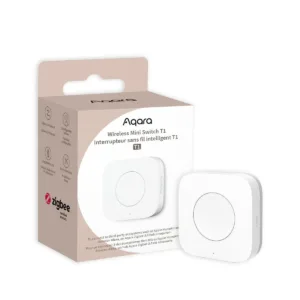
A small Zigbee button sticks on wherever you want a switch: by the bed, on the door or on the sofa. It launches a scene or a lamp through Home Assistant, with no cables and no drilling.
- Level
- Beginner
- Active time
- 20–40 minutes
You go to bed and the reading lamp is on the other side of the room. You want a button by the bed, but you don’t want to drill into the wall. A small wireless button solves that: you stick it on and tie it to a lamp, a scene or a blind.
What you will get
One button with three actions: one press, a double press and a long press. The button has no cable and needs no drilling. It can sit by the bed, on the sofa or by the door.
What we need
- Sonoff SNZB-01P — one for every place where you want a switch. For one room, start with one;
- A lamp, blind or scene already added in Home Assistant;
- Double-sided tape or a magnetic mount. No drilling is needed.
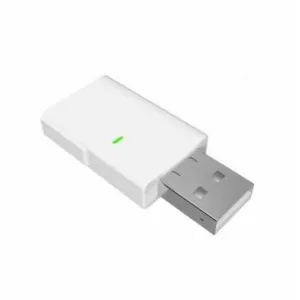
You need a Zigbee hub or Home Assistant with a Zigbee adapter.
How it works
On a press, the button sends a Zigbee message to the hub or adapter. Home Assistant sees it as a device event. An automation ties the event to an action. According to Sonoff, the SNZB-01P recognises single, double and long presses, so one button takes on three actions.
How it is at our place
At Marto’s, a wireless switch is already commonplace: Home Assistant listens for an event from the switch in the kids’ room and turns it into “open, stop or close” for the curtains. The trigger is an event zha_event with the command on on cluster 6. That is how a Zigbee switch works in Home Assistant, and the exact model you have may send other commands.
Steps
- Pair the button: in Home Assistant open Settings → Devices & services → Zigbee Home Automation → Add device and hold the button for 5 seconds until it enters pairing mode (per the Sonoff instructions).
- Name the device and choose a room for it, for example “Bedside button”.
- Open the device and choose Automations → Create automation. In the list of triggers, see which presses it offers. If something is missing, listen to the events in Developer tools → Events for
zha_event. - For a single press, choose an action, for example
light.togglefor the reading lamp. - For a double press, choose a second scene, for example “Night”. For a long press, choose switching everything off in the room.
- Stick the button on the chosen spot. First test the spot with the tape “dry”.
Checking the result
- Three kinds of press do three different things;
- From the button’s spot, the hub and the adapter can be heard: if not, move it or add a Zigbee router;
- After a Home Assistant restart, the button works without a new setup.
If it doesn’t work
- It doesn’t pair → the button isn’t in pairing mode → hold the button for 5 seconds and try near the hub;
- The double press isn’t told apart from the single → the triggers are wrong → choose the separate triggers and test them one by one;
- It lags or doesn’t react → weak battery or weak signal → change the battery and check the connection.
Limitations
- The button is wireless, but it isn’t “smart” by itself: without Home Assistant or a Zigbee hub it does nothing;
- The tape shouldn’t be left on a wet or greasy surface, in heat or in a steam room.
Sources and verification status
Checked against the documentation and Marto’s Home Assistant (read-only), 22.11.2026.
At home
Marto
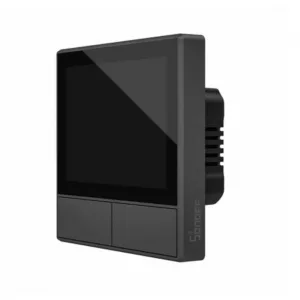
Marto's Home Assistant has several wireless switches and buttons. One switch in the kids' room operates the blinds through ZHA, and the Sonoff S-MATE and IKEA BILRESA control the kitchen, blinds and lighting.
Need a hand?
We can set up and install everything in this project. In some regions we install it ourselves — ask us.
Contact us